Cloudflare Deployment for Free Plan
FlowConsent Free uses your own Cloudflare account to deploy the required Worker + KV storage. This article explains how to create a restricted API token with the exact permissions needed
Written By FlowConsent
Last updated 8 months ago
Cloudflare account (free is sufficient)
What you’ll need
A Cloudflare account with access to the target Account
Permission to manage Workers and KV on that account
2 minutes 🙂
Step 1: Create a Cloudflare API Token
Log In to your Cloudflare account
Open My Profile → API Tokens or go to https://dash.cloudflare.com/profile/api-tokens
Click Create Token
Select Custom token (or Create Custom Token)
Give it a clear name, for example: FlowConsent banner
Step 2: Set token permissions (required)
Add the following permissions:
Where to set this in Cloudflare
In the token builder, locate Permissions
Add each row exactly as above
For Account, select the account where you’ll deploy your FlowConsent banner
Step 3: Create and copy the token
Click Continue to summary
Click Create Token
Copy the token immediately (shown only once)
In FlowConsent, go to Deployment>Cloudflare Configuration section and paste it to the field Cloudflare API KeyStep 4: Get your Cloudflare Account ID
You can find your Cloudflare ID on your dashboard (the 3 dots next to your workspace name)
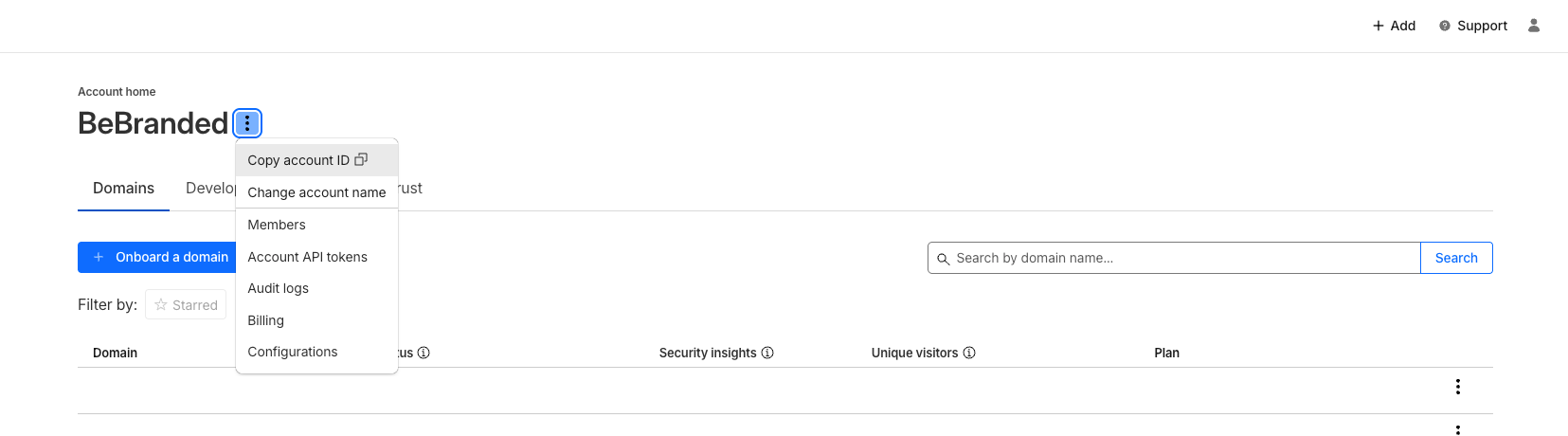
Copy your account ID
In FlowConsent, paste it into the field Cloudflare Account ID of the Cloudflare
Step 5: Give your Cloudflare worker a name
Choose your Worker name carefully — you won’t be able to change it after deployment.
Example: my-website-banner
Naming rules
Only lowercase letters, numbers, and hyphens (a-z, 0-9, -)
Must start with an alphanumeric character
Must end with an alphanumeric character
Step 6: Test your access and deploy
Once your Cloudflare credentials are filled in and your worker has a name, verify that FlowConsent can access your Cloudflare account via the button “Test connection”. If the test is successful, congratulations you can deploy your banner!
Was this helpful?
Still need help? Ask the team